If you’re searching for how to add multiple stops on Google Maps, you’re likely trying to plan errands, deliveries, sales visits, or service calls more efficiently.
In this guide, you’ll learn:
- How to add multiple stops on Google Maps (desktop & mobile)
- How many stops Google Maps allows
- Why Google Maps has a 10-stop limit
- Workarounds if you need unlimited stops
- A better solution for delivery and field service businesses
How to Add Multiple Stops on Google Maps (Desktop)
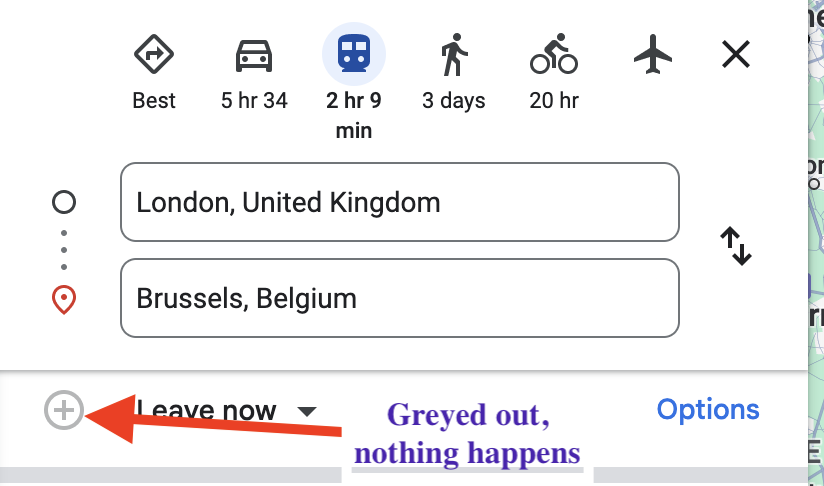
Follow these steps:
1️⃣ Open Google Maps
Go to https://maps.google.com
2️⃣ Click “Directions”
Enter your starting location and first destination.
3️⃣ Click “+ Add destination”
Under your first stop, click Add destination.
4️⃣ Add More Stops
You can continue adding stops — up to 10 total locations (including start and end).
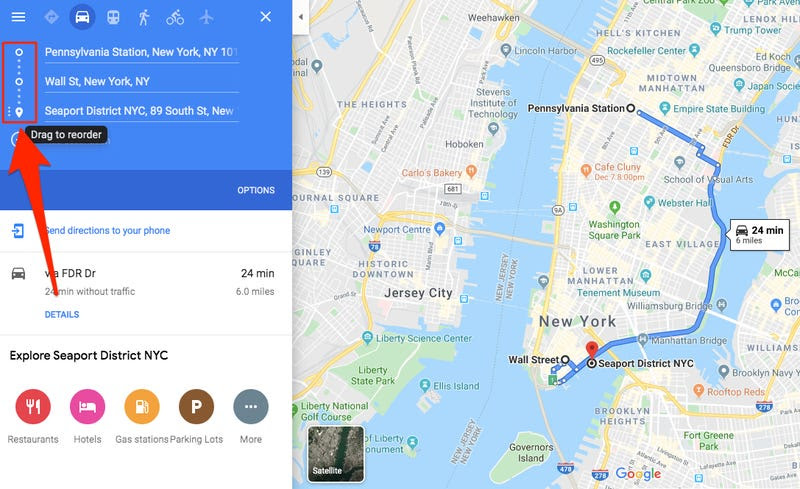
5️⃣ Reorder Stops
Drag and drop locations to change the order manually.
🔎 Important: Google Maps does not automatically optimize the route order for multiple stops.
How to Add Multiple Stops on Google Maps (iPhone & Android)
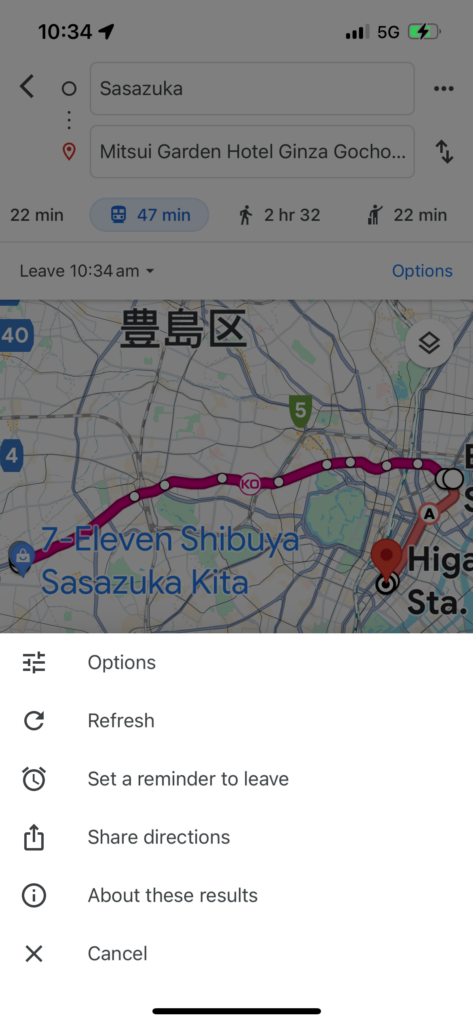
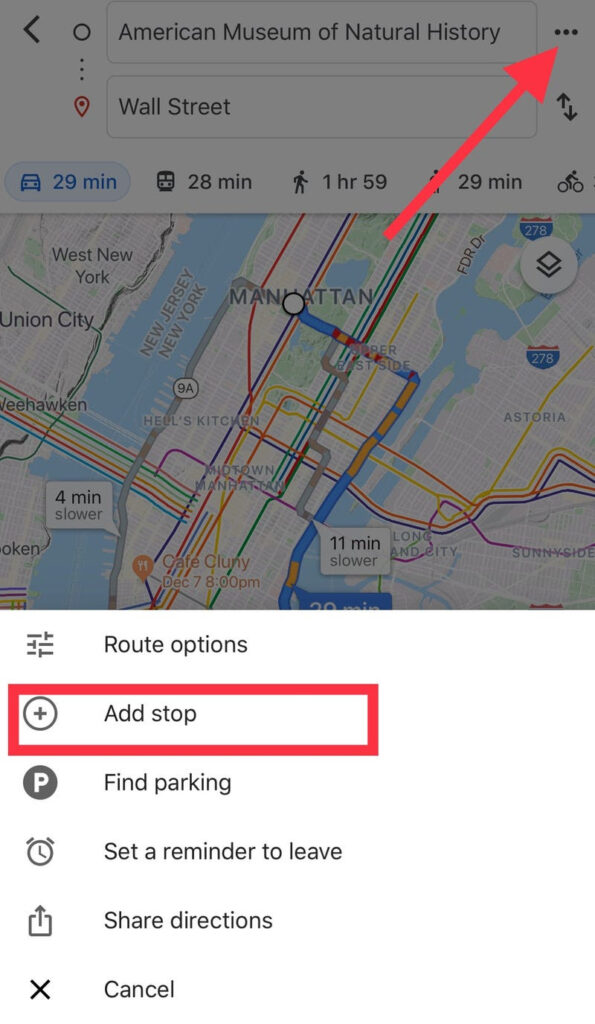
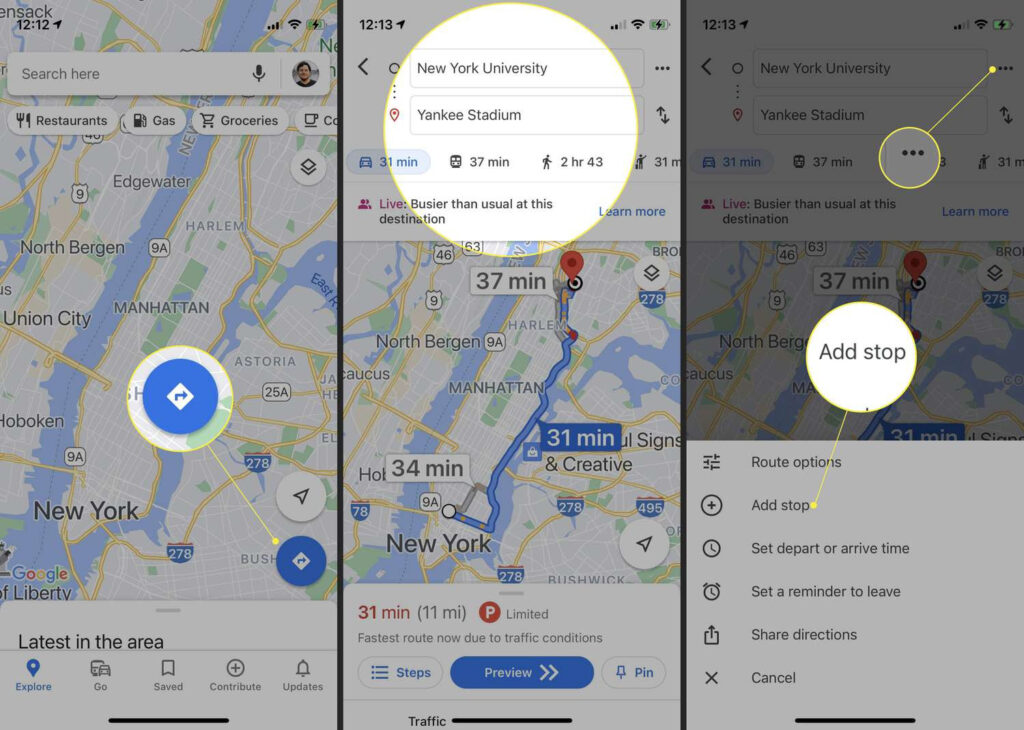
If you’re using the Google Maps app:
1️⃣ Open the app
2️⃣ Tap “Directions”
3️⃣ Enter your destination
4️⃣ Tap the three dots (⋮) in the top corner
5️⃣ Tap “Add stop”
You can then rearrange stops by dragging them into your preferred order.
Again, you’re limited to 10 stops per route.
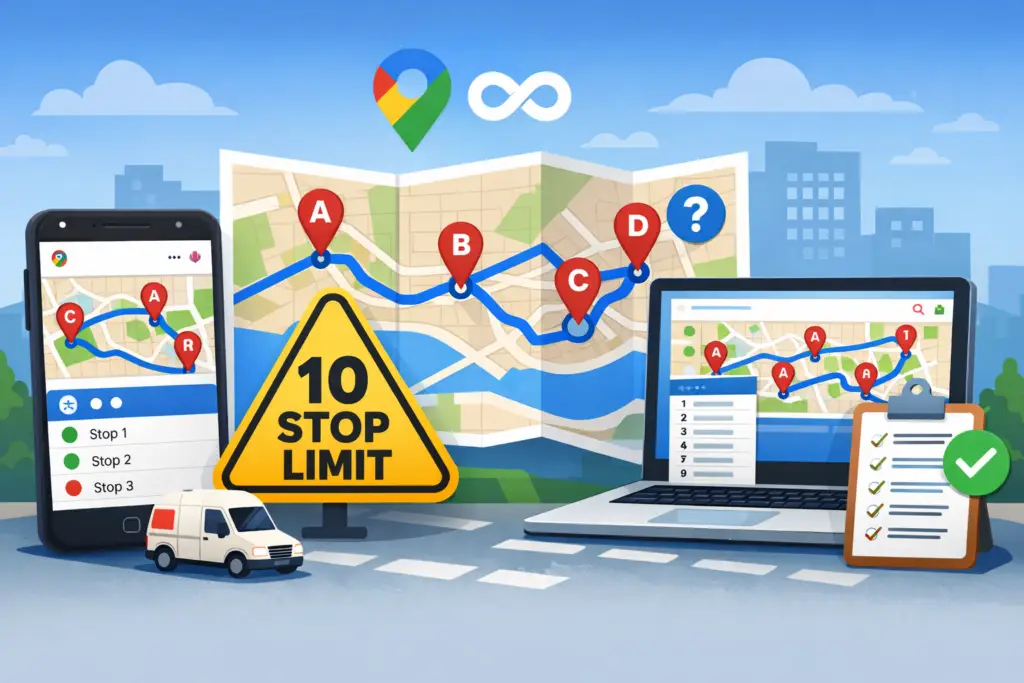
What Is the Google Maps 10 Stop Limit?
Google Maps allows:
- 🚗 Up to 10 total stops per route
- ✏️ Manual stop reordering only
- ❌ No automatic route optimization
- ❌ No bulk upload of addresses
- ❌ No multi-driver management
For everyday use, this works well.
But for delivery businesses, contractors, or service companies, the 10-stop limit quickly becomes restrictive.
Can You Add Unlimited Stops on Google Maps?
Short answer: No.
There is no built-in way to add unlimited stops to a single route inside Google Maps.
However, there are a few workarounds.
Workaround #1: Split Routes Into Batches of 10
You can:
- Create Route 1 (10 stops)
- Complete it
- Then create Route 2 (next 10 stops)
⚠️ Downsides:
- No total-day optimization
- No full route time estimate
- Manual effort increases significantly
Workaround #3: Use Route Optimization Software
If you need:
- 20+ stops
- 50+ stops
- Recurring delivery routes
- Multiple drivers
- Territory management
- CRM integration
You’ve outgrown basic navigation tools.
For teams that need more than basic navigation, a dedicated sales route planner provides unlimited stops and built-in CRM functionality.
For example, businesses that manage delivery routes daily often use tools like
Route Planner AI to automatically optimize stops, reduce fuel costs, and manage recurring service routes without the 10-stop limitation.
Unlike Google Maps, route optimization platforms are built specifically for operational efficiency — not just navigation.
When Should You Stop Using Google Maps for Multiple Stops?
Google Maps is ideal for:
- Personal errands
- Road trips
- Occasional multi-stop trips
But you should consider upgrading if you:
- Run a delivery company
- Manage field technicians
- Service recurring accounts
- Need route optimization
- Want to reduce drive time and fuel costs
Once routing becomes part of your business operations, optimization matters. That’s doubly true for wholesale and DSD delivery: dedicated route planning software for food distributors keeps standing orders in place and re-sequences multi-stop runs that blow past Google Maps’ 10-stop limit.
Frequently Asked Questions
How many stops can you add to Google Maps?
You can add up to 10 stops total per route.
Does Google Maps automatically optimize multiple stops?
No. You must manually reorder stops.
Can I upload multiple addresses from Excel?
Not directly in consumer Google Maps.
Is there a way to bypass the 10 stop limit?
Not within Google Maps. You must split routes or use route planning software.
Final Thoughts
If you were searching for:
- “How to add multiple stops on Google Maps”
- “Google Maps 10 stop limit”
- “How to plan unlimited stops”
Now you know the answer.
Google Maps works well for small trips — but it was never designed for large-scale delivery routing.
If you need a dedicated multi-stop route planner with no stop limit, Route Planner AI is purpose-built for the job.