View Speed Limit in Google Maps: Enable & Troubleshoot
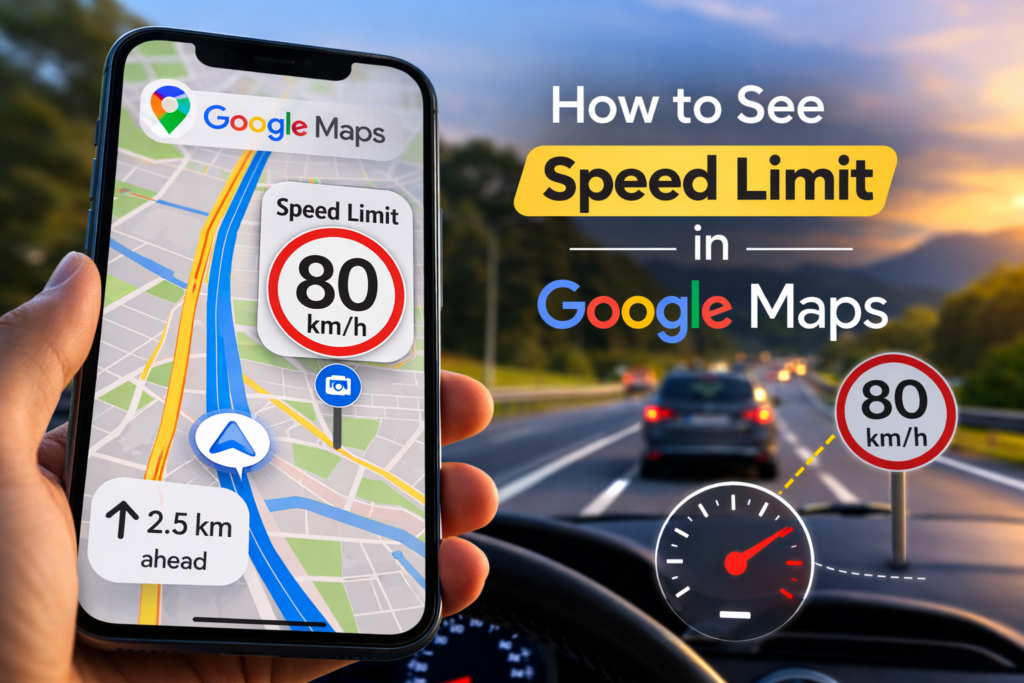
Ever found yourself on an unfamiliar road, squinting at distant signs to figure out the speed limit? You glance down at your phone for the next turn and might see a small icon with the answer right there—the Google Maps speed limit display.
This helpful feature isn’t always on by default, and sometimes it doesn’t appear at all. Whether you see it often depends on your location and a few key settings hidden inside the app. Here’s how to enable the feature, understand why it might be missing, and help correct it when it’s wrong.
How to Turn On the Speed Limit Display in Google Maps
That little speed limit icon is one of the most helpful features for any driver, but it might not be turned on by default. If you’re not seeing it, you likely just need to enable it in your navigation settings. The steps are simple and nearly identical for Android and iPhone.
For Android users:
- Tap your profile picture in the top-right corner.
- Select Settings.
- Scroll down and tap on Navigation settings.
- Find the “Driving options” section and turn the Speedometer toggle on.
For iPhone users:
- Open the app and tap your profile picture.
- Go to Settings, then choose Navigation.
- Under “Driving options,” make sure the Speed Limit toggle is switched on.
Once enabled, this setting should display the speed limit for most roads you navigate. If the icon is still missing, there are a few common reasons why.
Why Your Speed Limit Might Be Missing
If you’ve enabled the setting but the speed limit icon is still nowhere to be found, it usually comes down to data availability and location, not a mistake on your end.
The feature isn’t available in every country. Google gradually rolls out features like this, so if you’re in a region where it hasn’t launched, the display won’t appear.
Even in supported areas, you might find gaps in the map’s knowledge on brand-new housing developments, private roads, or some rural routes. If Google hasn’t gathered and confirmed the speed limit data for that specific road, the icon will remain hidden.
Occasionally, the culprit is a simple glitch. It’s always worth quickly double-checking your Navigation settings to ensure the toggle didn’t accidentally get switched off.
How Google Maps Knows the Speed Limit
Google Maps determines speed limits using a clever mix of technology and teamwork, combining data from several sources. It’s not pulled from one single, perfect source.
For a reliable starting point, Google uses official data provided by local and national governments. Beyond that, its Street View cars do more than take scenic pictures; they also capture images of actual speed limit signs, which are then added to the map’s database.
Finally, and perhaps most importantly, Google relies on feedback from the community. When drivers like you spot a mistake, they can report it. This constant flow of information helps keep the maps up-to-date and improves accuracy for everyone.
How to Report an Incorrect Speed Limit
Seeing the wrong speed limit on your screen can be confusing, but you can help fix it right from the driver’s seat. Because Google relies on community feedback to keep its maps current, your report is one of the fastest ways to get incorrect data corrected.
The process is quick and simple. While actively navigating, just tap on the speed limit icon in the corner of your screen. A menu will appear with an option to report an issue. From there, you can select the correct speed limit and tap to submit your feedback.
That action sends your suggestion to Google’s team for verification. By taking a moment to flag an error, you help make the road safer and navigation more accurate for the next driver.
Does Google Maps Warn You About Speeding?
Google Maps offers a subtle visual warning if you exceed the speed limit. The app is designed to be a quiet co-pilot, not a noisy backseat driver, so the warning is one you see, not hear.
As you drive, keep an eye on the speedometer icon. If you go over the posted speed limit, you’ll see it change color, typically from white or gray to orange or red. This visual cue is your gentle nudge to check your speed.
However, you won’t get an audio speed warning. This is a key difference between Google Maps and other apps like Waze, which are known for providing audible alerts. If you prefer a sound to get your attention, you might consider using an app built for that purpose.
Drive with More Confidence
Now you know how to turn the speed limit feature on, why it might not always be visible, and how you can help fix it for everyone. While the icon is a helpful co-pilot, remember that your eyes on the road and the physical signs are always your ultimate guide. Use this tool with confidence to make every journey a little smarter.