
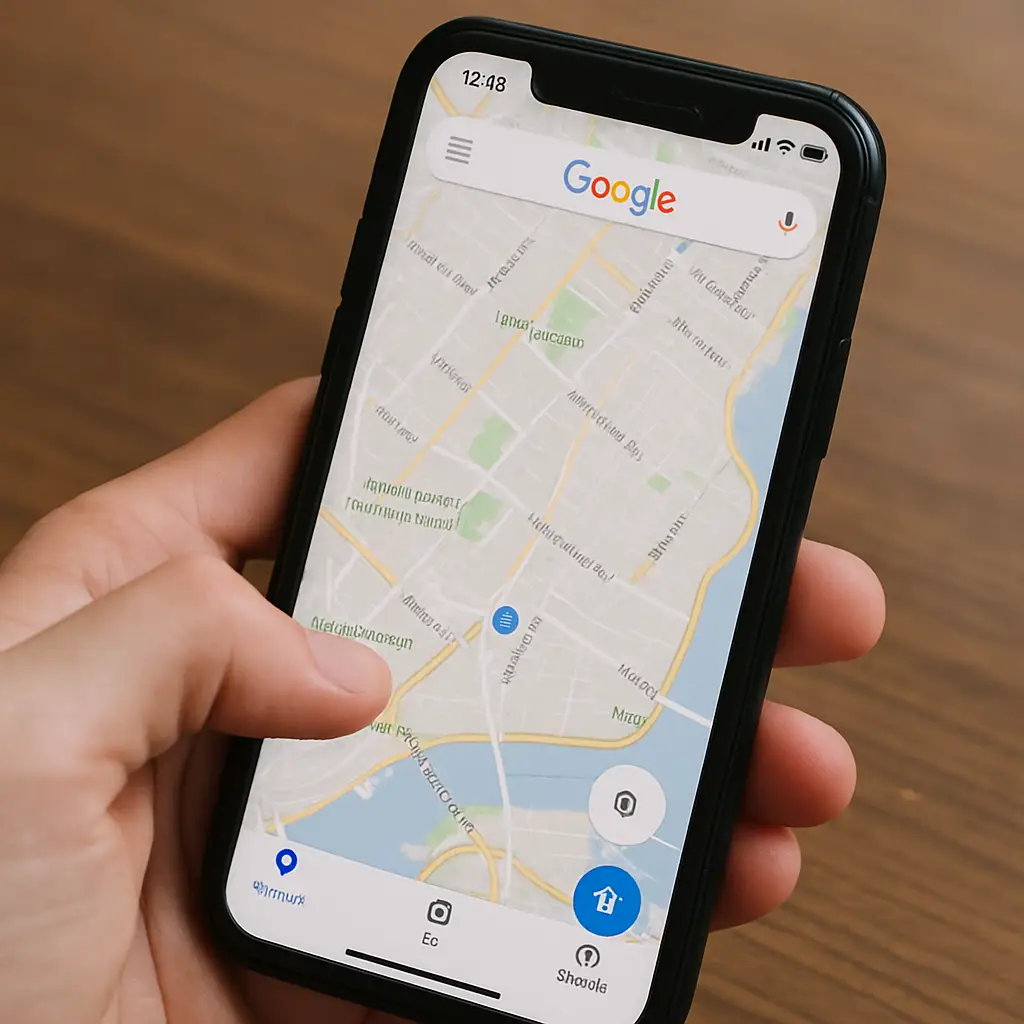
Set Google Maps as Default on iPhone: Tips & Tricks
Navigating with ease is crucial in today’s fast-paced world. Many iPhone users prefer Google Maps for its detailed features. However, setting it as the default app can be tricky.
Apple Maps is the default navigation app on iPhones. This can be frustrating for those who favor Google Maps. Unfortunately, iOS does not allow users to change the default navigation app directly.
But don’t worry, there are workarounds. You can still use Google Maps for most of your navigation needs. This guide will show you how to make Google Maps your go-to app.
We’ll explore how to enable iPhone location services for Google Maps. This is essential for accurate navigation. We’ll also look at customizing Google Maps settings for a better experience.
Additionally, we’ll cover using Siri and shortcuts to open Google Maps. This can streamline your navigation process. Third-party apps can also be set to open addresses in Google Maps.
By the end of this guide, you’ll have a comprehensive understanding. You’ll know how to make Google Maps your default choice. Let’s dive in and explore the possibilities.

Understanding Default Apps on iPhone
The concept of default apps is essential for any smartphone user. On an iPhone, default apps are pre-set applications that handle specific actions. These are often linked to native Apple apps.
Apple’s ecosystem favors its apps like Safari and Apple Maps. This integration creates a seamless user experience for everyday activities. However, it limits the user’s freedom to choose alternative apps.
iOS currently restricts the ability to change default settings for most apps. This restriction can be a point of contention for users. There is growing demand for flexibility, especially concerning navigation apps.
Understanding how default apps operate on an iPhone requires knowledge of iOS settings. Settings allow limited customization but are mostly aligned with Apple’s guidelines. There is no direct option to set non-Apple apps as default.
Despite the restrictions, there are possibilities for control. Using Siri and Shortcuts can offer indirect solutions. Third-party apps sometimes provide settings to redirect actions to preferred apps.
Here’s a summary of key points about default apps on iPhone:
- Default apps are pre-set for specific actions.
- Apple’s native apps are favored.
- Limited customization is possible through iOS settings.
- Alternative navigation apps can be accessed indirectly through workarounds.
Understanding these aspects helps users navigate their iPhones more effectively.

Why Choose Google Maps Over Apple Maps?
For many iPhone users, the choice between Google Maps and Apple Maps is crucial. Each app offers unique features, but Google Maps is often favored. This preference stems from its comprehensive functionality and user-friendliness.
Google Maps offers extensive features that surpass many of its competitors. It provides real-time traffic updates and more detailed public transit options. These features make it a preferred choice for urban navigation.
Another advantage of Google Maps is its street view and offline capabilities. Users can access a range of views, including satellite imagery and terrain, offline. This versatility is especially useful for travelers and explorers.
Moreover, Google Maps integrates smoothly with other Google services. This integration provides a seamless experience for users within the Google ecosystem. It also offers regular updates and improvements, ensuring reliability.
Here’s a concise list of the benefits Google Maps offers:
- Real-time traffic and public transit info
- Street view and offline accessibility
- Seamless integration with Google services
- Regular updates for reliability
Considering these features, Google Maps is a strong contender against Apple Maps. For many, it simply offers more practical tools for everyday use.
Enabling iPhone Location Services for Google Maps
Location services on your iPhone are crucial for the effective operation of Google Maps. They allow the app to provide accurate navigation and real-time updates. Without these services enabled, your GPS functionality becomes severely limited.
To begin, ensure your location services are turned on. Go to the “Settings” app, then select “Privacy,” and tap on “Location Services.” Make sure the toggle switch at the top is on. This is the first step to enhancing your Google Maps experience.
Next, allow Google Maps access to your location. Scroll through your list of apps within the Location Services settings. Find “Google Maps” and select it. You will have different options for location access: “Never,” “While Using the App,” or “Always.” Choose the option that best suits your needs, though “While Using the App” is often the preferred choice for privacy-conscious users.
Here’s a quick checklist for enabling location services:
- Open “Settings” and go to “Privacy.”
- Tap “Location Services” and enable it.
- Allow Google Maps access to your location.
By following these steps, you can ensure Google Maps works optimally. Proper location settings are essential for accurate navigation and a smoother user experience.

by Y M (https://unsplash.com/@ymoran)
How to Make Google Maps Default on iPhone: Step-by-Step Guide
While iPhones don’t allow setting Google Maps as the default app directly, several workarounds exist. These methods help you use Google Maps seamlessly for navigation tasks.
Firstly, try using the “Open in Google Maps” feature. When you tap on an address in some applications, you might see this option. Select it to bypass Apple Maps.
Another handy trick involves using Google’s Gmail app. You can set Gmail to open addresses in Google Maps by default. This is useful for handling address links directly in emails.
To get started with Gmail settings, follow these steps:
- Open the Gmail app.
- Tap the menu button and go to “Settings.”
- Find the “Default apps” option.
- Set Google Maps for opening addresses.
For a more integrated approach, consider installing the “Google Chrome” browser on your iPhone. Chrome allows you to open links in Google Maps instead of Apple Maps.
Here’s how to configure Chrome:
- Install and open Google Chrome.
- Go to Chrome settings.
- Ensure Google Maps is set for directions.
These methods bring you closer to making Google Maps feel like the default app.
It’s also helpful to customize Google Maps settings. Tailor notifications, preferred travel modes, and map types to your liking. This personalization enhances your navigation experience.

by Stephen Phillips – Hostreviews.co.uk (https://unsplash.com/@hostreviews)

by Zulfugar Karimov (https://unsplash.com/@zulfugarkarimov)
Using Google Maps with Siri and Shortcuts
Siri can simplify opening Google Maps. With a few commands, you can integrate Siri into your navigation process.
Start by saying, “Hey Siri, get directions to [Destination] using Google Maps.” This command tells Siri to use Google Maps for navigation, bypassing Apple Maps.
To create a Siri Shortcut, open the “Shortcuts” app. Here, you can add a shortcut for routing with Google Maps. Select the app, and set the destination. This saves time and improves efficiency.
Creating this shortcut involves these steps:
- Open the “Shortcuts” app.
- Tap the “+” sign to add a new shortcut.
- Choose “Apps” and select Google Maps.
- Set your destination and action.
Using Siri and Shortcuts is convenient for regular routes. They allow voice-activated navigation, reducing manual input needs.

by Brett Jordan (https://unsplash.com/@brett_jordan)
Setting Google Maps as Default in Third-Party Apps
Certain third-party apps let you set Google Maps as their default navigation app. This integration makes location services more intuitive.
For instance, the “Waze” app can be linked to Google Maps. When you select navigation, you might see Google Maps as an option. This feature is helpful for detailed traffic information.
In applications like “Yelp,” you might also find an option to open locations in Google Maps instead. This integration varies based on app compatibility.
To enable Google Maps in third-party apps:
- Look for navigation options within the app.
- Select Google Maps from the available choices.
- Set as the preferred option if prompted.
Keep in mind, not all apps may offer this setting. However, many update over time to include Google Maps support.
Take advantage of this interoperability for seamless navigation. This can streamline your mapping tasks significantly.

by Taras Chuiko (https://unsplash.com/@taraschuiko)
Customizing Google Maps Settings for Best Experience
Customizing Google Maps settings on your iPhone enhances usability. These adjustments can make navigation more efficient and personalized to your needs.
Begin by accessing Google Maps settings through the app. Tap on your profile photo, then select “Settings.” Here, you’ll find a variety of options to tailor your experience.
In the settings menu, you can adjust notification preferences. Choose to receive alerts about traffic, commute times, and nearby places. These notifications are key for up-to-date travel information.
Personalize your map view by selecting your preferred map type. Options include standard, satellite, and terrain views. This selection can impact how you interpret map data.
Additionally, modify language and distance settings. Choose your preferred language for app interaction. Set distances to either miles or kilometers, depending on your comfort and locale.
Here is a quick checklist for optimal Google Maps settings:
- Enable commute notifications
- Select preferred map view type
- Adjust language and distance units
- Customize sound and voice guidance
These settings will enhance your navigation experience. Small changes can make Google Maps more intuitive and user-friendly.
Tips and Workarounds for Using Google Maps as Default
While you can’t officially set Google Maps as the default app on an iPhone, there are workarounds that make accessing it easier. These tips will help you maximize Google Maps usage efficiently.
First, use the “Open with” feature in apps like Mail and Safari. Copy an address, then paste it directly into Google Maps. This is a simple yet effective method to bypass Apple Maps.
Another useful tip is to incorporate Google Maps in your workflow with the iPhone’s Shortcuts app. Create a shortcut that opens addresses in Google Maps. This shortcut streamlines navigation through automation.
Google Chrome users can set Google Maps as the go-to app for directions. Change link handling in Chrome’s settings to integrate Google Maps. It’s a useful setup for Chrome-savvy users.
Don’t forget to adjust location-sharing settings in Gmail. Under settings, select Google Maps as the default for viewing shared locations. It’s especially useful if you frequently receive location links via email.
Here’s a quick list of useful workarounds:
- Use “Open with” feature in Mail and Safari
- Create a Shortcut to open maps in Google Maps
- Adjust Chrome settings to use Google Maps
- Configure Gmail to handle locations with Google Maps
These strategic adjustments can seamlessly integrate Google Maps into your iPhone experience, making it almost like a default app.

by Kelly Sikkema (https://unsplash.com/@kellysikkema)
Troubleshooting Common Issues with Google Maps on iPhone
Experiencing problems with Google Maps can be frustrating, but most issues are easily resolved. Here are some common problems and solutions.
First, check your internet connection. A weak connection can lead to slow loading or incorrect navigation details. Switch to a stable Wi-Fi or better cellular network to resolve this.
Another common issue is outdated app versions. Make sure Google Maps is updated to the latest version for smooth functionality. Visit the App Store regularly to check for updates.
You might also face location-related issues due to incorrect settings. Ensure iPhone location services for Google Maps are enabled by navigating to Settings > Privacy > Location Services. Allow Google Maps to use your location.
Consider restarting your iPhone if issues persist. A simple reboot can clear temporary glitches and improve app performance.
Here’s a quick checklist for troubleshooting:
- Ensure a strong internet connection
- Update Google Maps regularly
- Enable location services for Google Maps
- Restart your iPhone if needed
These steps typically resolve most common issues with Google Maps on iPhone, ensuring a smoother user experience.

by henry perks (https://unsplash.com/@hjkp)
Frequently Asked Questions
Switching navigation settings can lead to many questions. Here are some answers to common queries about Google Maps on iPhones.
Can I make Google Maps my default navigation app on my iPhone?
Apple doesn’t allow third-party apps as default options. However, you can use workarounds like Siri Shortcuts.
Why won’t Google Maps open on my iPhone?
Check your internet connection and ensure your app is updated. Make sure iPhone location services are enabled.
Can I use Siri to open Google Maps for directions?
Yes, create a Siri Shortcut to use voice commands for Google Maps.
Here’s a quick recap:
- Apple restricts default app settings
- Ensure app and internet are active
- Use Siri Shortcuts as a workaround
These answers address the most frequent concerns iPhone users have with Google Maps.
Conclusion and Key Takeaways
Making Google Maps your go-to navigation option on an iPhone requires a few creative strategies. While Apple limits default app settings, you can still streamline access using methods like Siri Shortcuts and third-party app configurations.
By enabling iPhone location services and adjusting Google Maps settings, you ensure a seamless navigation experience. Remember to stay updated with iOS changes that might offer new possibilities.
Ultimately, using Google Maps effectively on an iPhone involves understanding both app capabilities and system constraints. By following the steps outlined, you can enhance your mapping experience significantly.