
How to Cite Google Maps APA, MLA & Chicago
You’ve found the perfect Google Map for your school project or blog post. It shows everything you need, from a specific business location to a cross-country route. But now comes the tricky part: how do you actually cite it?
Just like a book or website, a digital map is a source that needs credit. You don’t need to be a librarian to figure this out; the process is more about following a simple recipe than understanding complex theory.
This guide provides the exact formulas for MLA, APA, and Chicago styles. We’ll show you precisely what to include, where to find the information, and how to format it so you can get full credit and finish your work.
MLA, APA, and Chicago Citation Formats
Before you can build your citation, you need to know which format to use. Think of citation styles as a “dress code” for your project—different teachers and fields require a different look. The three most common formats are MLA, APA, and Chicago. As a rule of thumb, English and humanities classes often use MLA, social science and technical fields use APA, and history classes often prefer Chicago. If you weren’t given any instructions, MLA is a great all-purpose choice.
Simply find the pieces of information from your specific map and plug them into the correct structure.
- MLA 9 Format: “Title of Map.” Google Maps, Google, Date Accessed.
- APA 7 Format: Google. (Year). Title of Map [Google Maps]. Retrieved Date, from URL
- Chicago (Notes-Bibliography) Format: Google Maps. “Title of Map.” Accessed Date. URL.
Seeing it in action makes it even clearer. Let’s say you are citing a general map of downtown San Francisco that you viewed on October 5, 2023. Here is how the final citation would look in each style:
MLA 9 Example: “Map of Downtown San Francisco.” Google Maps, Google, 5 Oct. 2023.
APA 7 Example: Google. (2023). Map of downtown San Francisco [Google Maps]. Retrieved October 5, 2023, from https://www.google.com/maps/@37.7749,-122.4194,14z
Chicago Example: Google Maps. “Map of Downtown San Francisco.” Accessed October 5, 2023. https://www.google.com/maps/@37.7749,-122.4194,14z
Now you just need to gather the ingredients. The next step is learning where to find the four key pieces of information for any Google Map.
What Information Do You Need? Finding the 4 Key Pieces for Your Citation
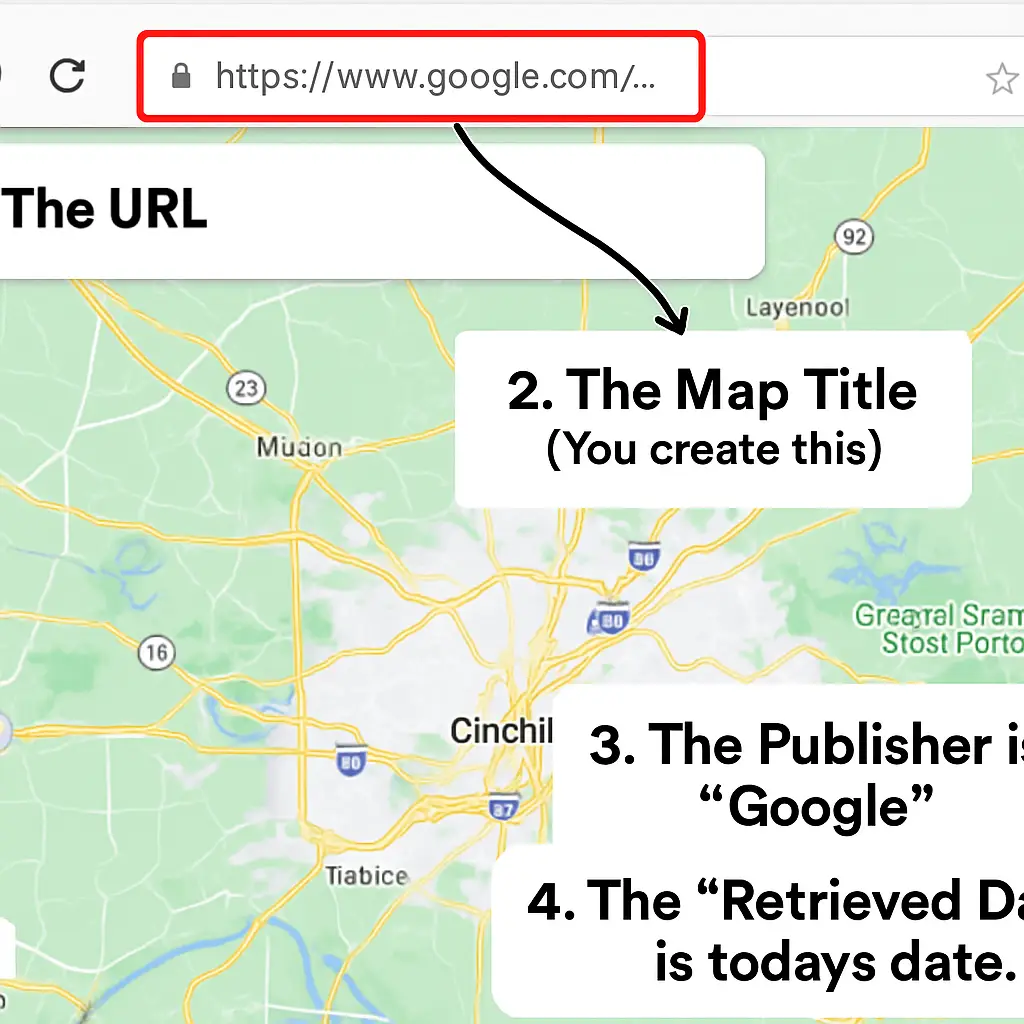
Gathering the information for your citation is surprisingly straightforward. Every Google Maps citation, regardless of style, is built from four components: a descriptive title, the publisher, the date you accessed the map, and the URL.
Unlike a book, a Google Map doesn’t have a formal title, so you’ll need to write a short, clear description yourself. For example, “Map of Boston, MA” or “Eiffel Tower area” works perfectly. The publisher is also easy—it’s simply “Google.”
Because Google is always updating its maps, your citation must note the exact day you viewed it. This “retrieval date” tells your reader which version of the map you saw. Just use the current date when you’re creating your citation.
Finally, you’ll need the URL, which is the web address you can copy from your browser’s address bar. With those four pieces—your descriptive title, “Google” as the publisher, today’s date, and the URL—you have everything required to fill in the templates. This process works for a single location, but citing multi-stop directions requires one small adjustment.

How to Cite Google Maps Directions or a Route
Often, you need to cite the specific directions for a trip, not just a single spot. The process is nearly identical to what we’ve already covered, with just one change: how you write the descriptive title.
Instead of describing a location, describe the route itself. A great format to use is “Directions from [Starting Point] to [Destination].” For example, if your blog post describes a road trip, your title might be “Directions from Los Angeles, CA to Las Vegas, NV.” This clearly tells your reader what path you are referencing.
A complete MLA citation for that route would look like this: “Directions from Los Angeles, CA to Las Vegas, NV.” Google Maps, Google, 14 Oct. 2023, www.google.com/maps/directions/….
This same idea of creating a descriptive title is also the key when citing a specific view from Google Street View.
Citing Google Street View: A Simple Adjustment
Just like with driving directions, citing an image from Google Street View is all about being descriptive. Instead of a top-down map, you’re referencing a ground-level photograph from a specific time and place. Your citation needs to make this distinction clear so your reader understands exactly what you used as a source.

The key is to adjust your citation’s title to include the words “Google Street View” followed by a description of the location. For example, instead of “Map of the Empire State Building,” your title would become “Google Street View of the Empire State Building.” Remember, the publisher is still Google, not the owner of the property shown in the image.
For example, here is a full APA citation for a Street View image. Notice how the title clearly states what is being shown and that the retrieval date is included because the online imagery can change over time.
Google. (n.d.). Google Street View of the Empire State Building. Retrieved October 15, 2023, from https://www.google.com/maps/@40.7484,….
Is Google Maps a “Credible Source” for Your Paper?
For most academic work, Google Maps is a perfectly credible source for showing modern locations or routes. You can add it to your project with confidence, knowing you have the tools to cite it correctly. The one key exception is for deep historical or scientific topics, where a quick check with your instructor is the smartest move. This simple step turns a source of potential anxiety into just another powerful tool for your research.